PixVid MCP for Claude
Connect PixVid to your AI assistant and generate videos, images, and voiceovers right from your prompts.
Get connected in 3 steps
- 1
Open Claude settings
Open the Claude app or claude.ai and go to
Customize → Connectors - 2
Add PixVid custom connector
Name it PixVid and paste the URL:
- 3
Connect, sign in and start
Sign in, then ask Claude to generate an image or video.
Create in Claude
How does MCP work?
ClaudeCreate a touching animal story Short about a penguin — emotional hook, voiceover, and captions for YouTube.
I'll shape a simple rescue arc with a strong opening hook, short narration beats, and caption-friendly pacing for Shorts.
Script and scene plan are ready — calling PixVid to generate the story video with voiceover and captions.
compose_video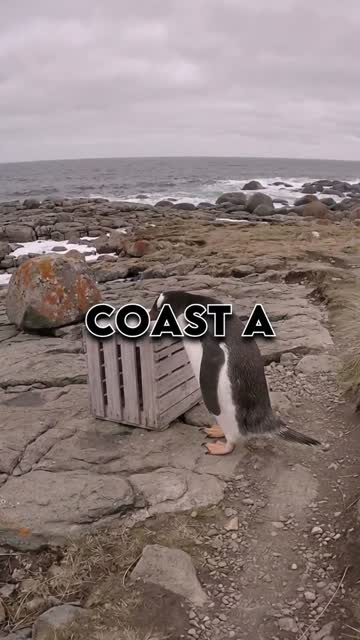
Generate a 45-second 9:16 animal story Short about a penguin with cinematic scenes, ElevenLabs voiceover, and bold captions.
Here's the finished Short — story scenes, voiceover, and captions are ready to download.
Create with PixVid in Claude
Hover a clip to recreate it in one click.